Resolver
The TrackVision Resolver enables intelligent redirection from Digital Link URIs to custom web pages, with support for business rules, requests that include specific "linkType" parameters, and enhanced consumer experiences.
Overview
The TrackVision Resolver acts as an intelligent intermediary between Digital Link URIs and destination content. Based on the entity type that was scanned and the other attributes of the incoming request (e.g. whether a linkType parameter was provided, whether JSON or HTML was requested, what the preferred languages were, the geo-location of the user, and device details), the resolver checks for an executes the appropriate redirection logic based on configuration stored in the system.
You can get started with the resolver really quickly by assigning simple redirection targets to the different entities in the system: e.g. "if A is scanned, go to B".
You can also configure advanced "Redirection Rules" that are creating using the workflow engine. The system feeds the rule with all the context of the requestand you can decide exactly what to do for different conditions. Context includes:
- The entity that was scanned - for example the GTIN and Serial, or the SSCC number
- The URL parameters included in the request such as linkType or expiryDate (if they exist)
- The geographic location of the user based on an IP address lookup
- The language preferences of the user based on their browser preferences
- The device and OS of the user
- Whether HTML or JSON data was requested enabling you to create public APIs for products as well as redirect to webpages
In the workflow engine you have access to all the data in TrackVision, enabling you to handle advanced use cases such as "if this item is from a recalled batch, then redirect to a special page, otherwise go to the e-commerce page". You can redirect to specific webpages, dynamically including parameters in the URL, or you can return JSON data.
Base Resolver Endpoint
The resolver processes all Digital Link requests through:
https://customer.tvai.me/{ai}/{identifier}/{qualifier}/{identifier}?{parameters}
All TrackVision customers get a domain included with their system - in this example, the domain "customer.tvai.me" would be replaced by a domain for your account (e.g. mybusiness.tvai.me). Note that you can also setup TrackVision's resolver with your own domain to ensure portability - contact TrackVision support to set this up.
Resolver Configuration Guide
Understanding how the resolver processes requests
Every TrackVision implementation comes with a resolver already operating. When a request hits the resolver, the system checks the type of entity that has been scanned, and goes to specific areas of the system to fetch the rules. If no rules are defined at a specific level, the system can fall back to a more generic rule at a higher level.
The resolver process is as follows:
- If the entity includes a product type (such as GTIN, SGTIN, or LGTIN - explained in this article), get rules from the relevant product master data record
- If the entity is a location or sub-location (GLN or SGLN), get rules from the relevant location master data record
- If the entity is a party/organisation (PGLN), get rules from the relevant organisation master data record
- If the entity is an SSCC, GRAI or GIAI, get the rules from the appropriate account level rules for that type
- If rules are not present or set to null, fall back to the account-level default redirection rule
At every level, users can define a simple redirection target or an advanced redirection rule. The system will execute an advanced rule if specified. If not specified, it will execute the redirect to the simple redirection target if specified. If neither are specified, it will fall back to a more generic rule as per the process described earlier.
Configuring a rule for products that include a GTIN, including batches (LGTIN) or unique items (SGTIN)
To configure redirection rules for a specific product, including digital links at a batch or item level, simply navigate to Products under Master Data and click into the product you want to set a rule for (or create one with the right GS1 GTIN if it doesn't exist).
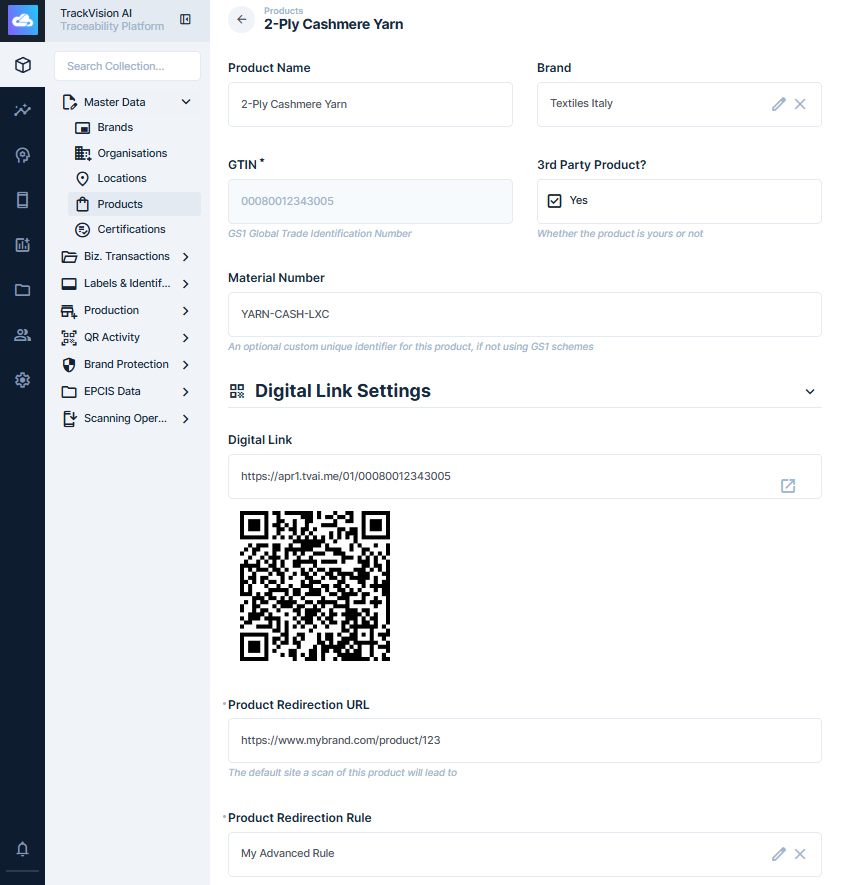
You will find a section called Digital Link Settings:
- The GTIN level Digital Link is displayed here as a URL and QR code.
- There is a textbox called Product Redirection URL - this allows you to set a default redirection target as a URL. Note that very simple substitution of Digital Link key values is also supported using
{{}}notation - for example you could set a target ofhttps://example.com?gtin={{gtin}}and the system will dynamically substitute the GTIN value into the URL. Supported parameters includegtin,serial,lot, andscanid(the ID of the scan object that will be created in the database for this scan) - There is a field called Product Redirection Rule which lets you select an advanced redirection rule from the Flows configured on the system and apply it to this product. See Platform Automation - Flows for how flows work in more detail.
Here is a screenshot of the Digital Link configuration for an example product:
To learn more about the difference between GTIN, LGTIN and SGTIN, check out this article)
Configuring a rule for locations (GLN and SGLN)
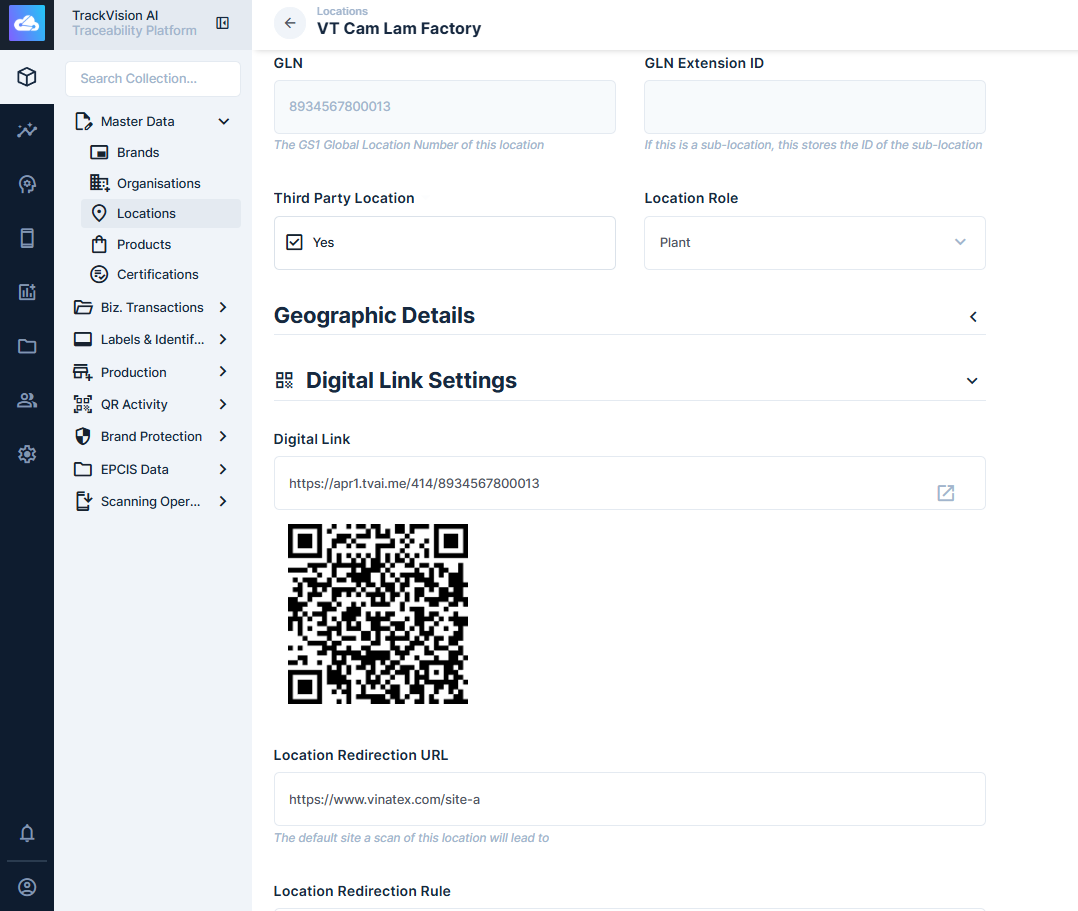
To configure redirection rules for a location, simple navigate to Locations under Master Data and click into the location you want to set a rule for (or create one with the right GS1 GLN + optional extension if it doesn't exist)
Similar to product, you will find a section called Digital Link Settings with options to set a simple redirection URL and/or an advanced rule.
Configuring a rule for organisations (PGLN)
To configure redirection rules for a location, simple navigate to Organisations under Master Data and click into the location you want to set a rule for (or create one with the right GS1 PGLN if it doesn't exist)
Similar to product, you will find a section called Digital Link Settings with options to set a simple redirection URL and/or an advanced rule.
Configuring a rule for other entity types (SSCC, GRAI, GIAI)
Redirection rules for SSCC, GRAI, GIAI and other entity types can be found by navigating to System Configuration > Resolver Configuration:
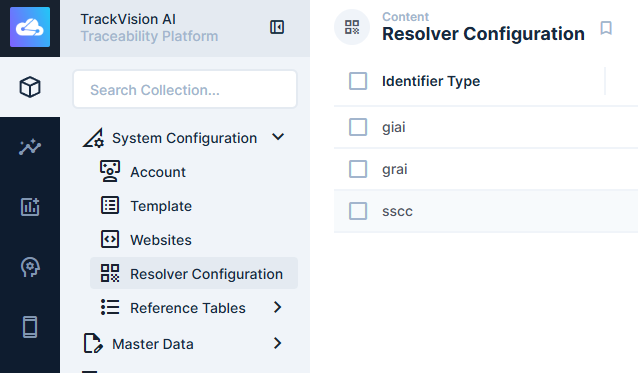
Create a record here and select the identifier type you want to configure (e.g. SSCC). You can then set a simple or advanced redirection rule as normal.
Configuring the default redirect for the account
To configure the default redirect for the account (which applies if no other rules apply to a scan), navigate to System Configuration > Account and click on your account. You can change the default redirection rule (simple only) here.
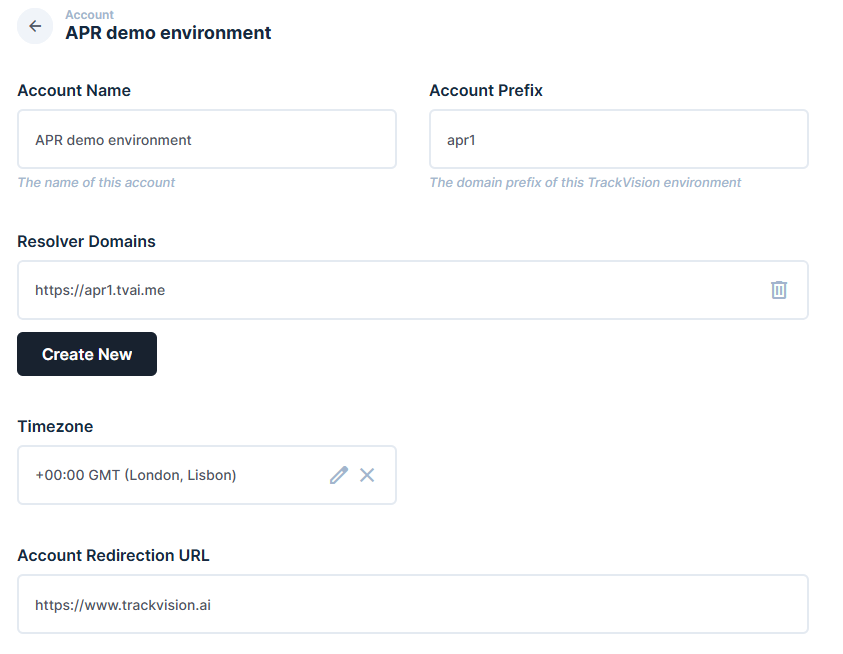
TrackVision will have set this value to your home page during onboarding. This setting is an absolute fallback. Ideally, the system should be configured so this rule is never executed.
Related Documentation
- Scan Events - API information for the data stored when a consumer interacts with a QR code
- GS1 Web Vocabulary - API to return master data in GS1 Web Vocabulary format