Data Editor

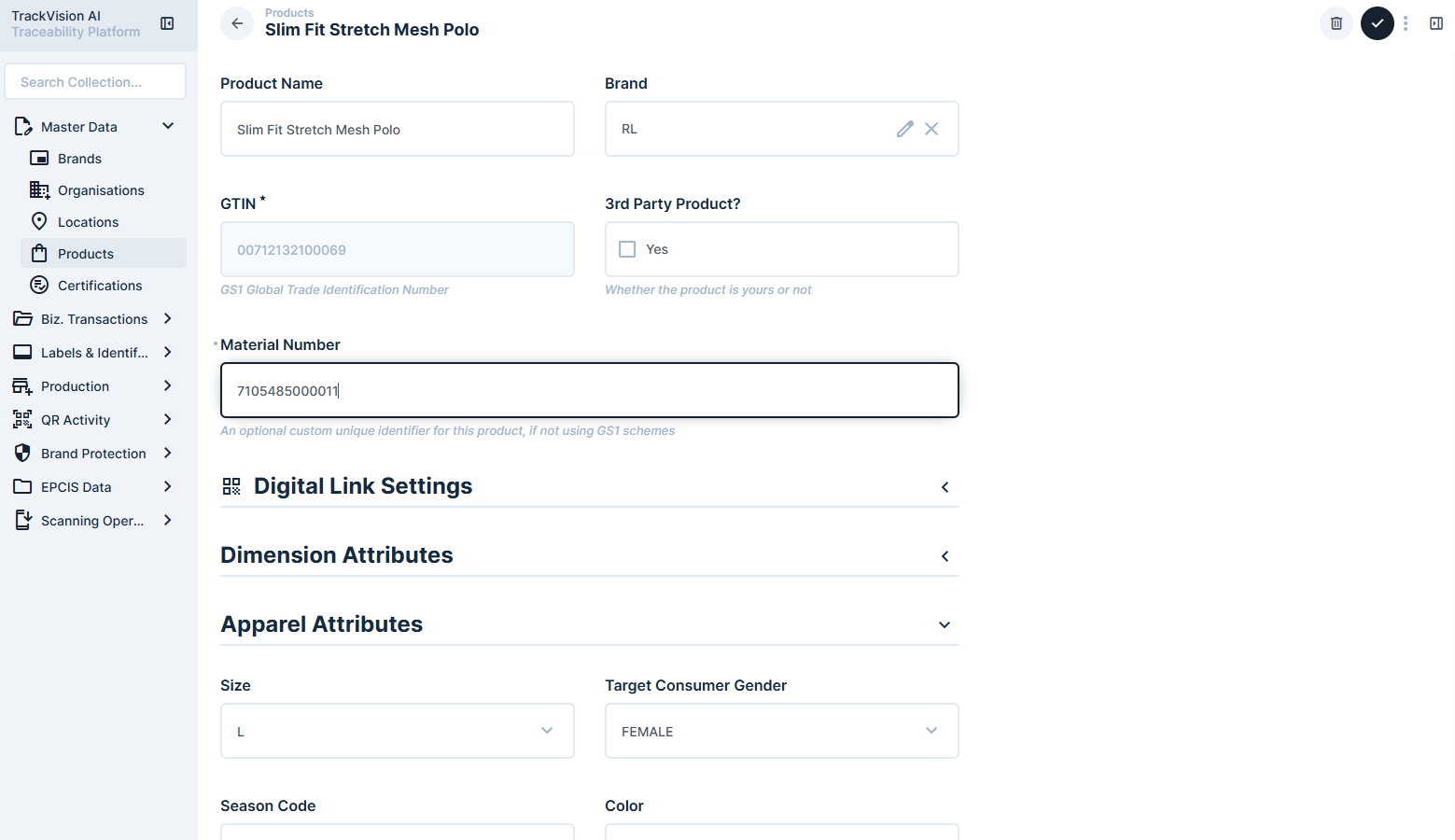
The TrackVision data editor provides a comprehensive interface for creating, editing, and managing individual data items. Whether you're working with products, organizations, locations, or any other data type, the editor offers powerful tools for maintaining accurate and complete information.

Editor Interface Overview

The content editor presents a structured form interface where you can input and modify data for individual items. The interface adapts to different content types and field configurations, providing the appropriate input controls for each type of data.

Form Structure

  • Field Organization: Fields are organized into logical groups and sections
  • Required Fields: Clearly marked fields that must be completed
  • Optional Fields: Additional fields that can be filled as needed
  • Validation: Real-time validation ensures data accuracy and completeness
  • Smart Layouts: Form layout adapts based on field types and relationships

Editor Modes

  • Create Mode: Add new items to collections
  • Edit Mode: Modify existing items
  • Duplicate Mode: Create copies of existing items with pre-filled data
  • Read-Only Mode: View item details without editing capabilities

Core Editing Workflows

Creating New Items

Starting a New Item

  1. Navigate to Collection: Select the appropriate collection from the content explorer
  2. Create New: Click the create button to start a new item
  3. Template Selection: Choose from available templates if configured
  4. Required Fields: Complete all required fields before saving

Editing Existing Items

Accessing Items for Editing

  • Direct Selection: Click on items from collection views to open the editor
  • Search and Edit: Use search to find specific items for modification
  • Batch Editing: Edit multiple items simultaneously using batch operations
  • Quick Edit: Make rapid changes using inline editing where available

Modification Workflows

  • Field Updates: Change individual field values as needed
  • Relationship Management: Add, remove, or modify relationships to other items
  • Status Changes: Update workflow status and approval states
  • Metadata Updates: Modify creation dates, ownership, and other metadata

Duplicating Content

When to Use Duplication

  • Similar Items: Create variations of existing products or configurations
  • Template Creation: Use successful items as templates for new ones
  • Batch Creation: Quickly create multiple similar items
  • Version Management: Create new versions while preserving originals

Duplication Process

  1. Select Source Item: Choose the item to duplicate
  2. Duplicate Action: Initiate the duplication process
  3. Modify Unique Fields: Update fields that must be unique (IDs, names, etc.)
  4. Customize Content: Adjust duplicated content to meet new requirements

Advanced Editing Features

Collaborative Editing

Comments and Discussion

  • Item Comments: Add comments to items for team communication
  • User Tagging: Tag specific users in comments to notify them
  • Discussion Threads: Maintain organized discussions about specific items
  • Comment History: Track all comments and their chronological order

Collaboration Features

  • Shared Editing: Multiple users can work on the same item simultaneously
  • Edit Notifications: Receive notifications when others modify shared items
  • Conflict Resolution: System helps resolve conflicting edits
  • Permission Controls: Manage who can edit different types of content

Content Sharing

  • Generate Links: Create shareable links for specific items
  • Access Control: Configure who can access shared links
  • Expiration Settings: Set time limits for link validity
  • View Permissions: Control whether shared links allow viewing or editing

External Sharing

  • Read-Only Access: Share content with external users for review
  • Temporary Access: Provide time-limited access to specific items
  • Public Links: Create public URLs for content that should be openly accessible
  • Secure Sharing: Use authentication requirements for sensitive content

Field Types and Input Controls

Basic Field Types

  • Text Fields: Single-line and multi-line text input
  • Numbers: Integer and decimal number fields with validation
  • Dates and Times: Date pickers and time selectors with timezone support
  • Boolean Fields: Checkboxes and toggle switches for yes/no values
  • Selection Fields: Dropdown menus and radio buttons for predefined options

Advanced Field Types

  • Rich Text: Full-featured text editor with formatting capabilities
  • File Uploads: Support for documents, images, and media files
  • JSON Data: Structured data input for complex information
  • Geographic Data: Location pickers and coordinate input
  • Relational Fields: Links to other items in the same or different collections

Validation and Constraints

  • Required Fields: Fields that must be completed before saving
  • Format Validation: Ensure data matches expected patterns (email, phone, etc.)
  • Range Validation: Numeric and date ranges to ensure realistic values
  • Unique Constraints: Prevent duplicate values in fields that must be unique
  • Custom Validation: Business rules that enforce specific data requirements

Content Management Best Practices

Data Quality

  • Consistent Formatting: Use standardized formats for similar data types
  • Complete Information: Fill in all relevant fields to maximize data value
  • Regular Reviews: Periodically review and update content for accuracy
  • Validation Compliance: Ensure all data meets validation requirements

Workflow Management

  • Status Tracking: Use status fields to track item workflow progress
  • Assignment Management: Assign items to appropriate team members
  • Approval Processes: Follow established approval workflows for sensitive content
  • Change Documentation: Document significant changes in comments or notes

Security Considerations

  • Access Controls: Respect permission boundaries when editing content
  • Sensitive Data: Handle confidential information according to security policies
  • Audit Compliance: Maintain proper documentation for regulatory requirements
  • Backup Practices: Regular backups ensure content safety