Permissions
TrackVision uses a role-based access control system. Every user is assigned a role, and roles are granted permissions that determine what data they can access and what actions they can perform. Permissions are configured per collection (data type) and per action.
Roles
A role is a named group that permissions are attached to. Users inherit the permissions of their assigned role. Note that permissions are additive - if multiple permissions are assigned that provide access to the same resource, the most amount of access granted by either of them will apply.
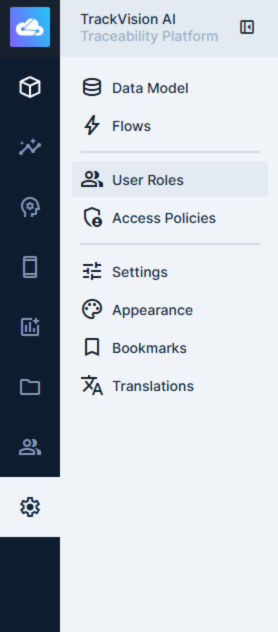
Navigate to Settings > User Roles to view and manage roles.
Special Roles
Administrator — full, unrestricted access to the entire platform including the data model and all data. Administrator access bypasses all permission rules.
Public — defines what unauthenticated users can access via the API and content hosting services. All public permissions are disabled by default. Only grant public access intentionally and with care — any collection given read access here is exposed to anyone, including bots and unauthenticated API requests. Useful for sharing images and documents that need to go on web pages.
Creating a Role
- Go to Settings > User Roles
- Click Create Role on the top right of the screen.
- Give the role a name (e.g. Site Manager, Read Only, API Integration).
- Add one or more permission policies for each collection (see below).
- Assign users to the role from the role detail page, or from individual user profiles.
Policies
Policies are collections of permissions - configured per collection and per action. To manage policies, go to Settings > Access Policies
The five available actions are:
| Action | What it controls |
|---|---|
| Create | Adding new records |
| Read | Viewing records and their fields |
| Update | Modifying existing records |
| Delete | Removing records |
| Share | Granting other users access to specific records |
For each action on each collection, a role can be set to:
- All Access — unrestricted access to all records and fields
- No Access — completely blocked
- Custom — granular control with row-level filters and field-level restrictions
Field-Level Permissions
When using custom permissions, you can specify which fields within a collection a role can read or write. Fields not included in the permission are returned as null in API responses — they are invisible to the user.
This is useful for hiding sensitive fields (e.g. cost prices, internal notes) from roles that have general access to a collection but should not see everything.
Field permissions for read and write are configured independently — a role might be able to read all fields but only write a subset.
Row-Level Permissions (Filters)
Custom permissions can include a filter rule that restricts which records a role can access. Only records matching the filter are visible or modifiable.
Filters use the same logic as query filters elsewhere in the platform. Dynamic variables are supported:
$CURRENT_USER— resolves to the ID of the authenticated user$CURRENT_ROLE— resolves to the ID of the user's role
Example use cases:
- A location manager can only see records where
location_idmatches their assigned location:{ "location_id": { "_eq": "$CURRENT_USER.location" } } - A role can only read records with
statusequal topublished - Users can update records they created:
{ "created_by": { "_eq": "$CURRENT_USER" } }
Row-level filters apply at the API level — they cannot be bypassed by frontend behaviour.
Validation Rules
Write permissions (create and update) can include validation rules. These are conditions that submitted data must satisfy before a record is saved. If validation fails, the write is rejected.
Validation rules are useful for enforcing business logic — for example, requiring that a lot number is set before a record can be marked as shipped, or preventing a status from being set to a value that bypasses a required step.
Field Presets
Presets automatically populate fields with fixed values when a record is created or updated via a particular role. They are invisible to the user and cannot be overridden.
A common use case is locking a field like organisation_id to the current user's organisation on create, preventing a user from creating records attributed to another organisation even if the API is called directly.
Multiple Policies
Users can have more than one policy applied (either directly, or through role stacking). When multiple policies apply:
- Field permissions are additive — the user can access the union of all fields granted across policies
- Row-level filters combine with OR — a record is accessible if it matches the filter in any applicable policy
- Policies grant permissions; they cannot be used to restrict permissions granted by another policy
This means that if a user has two roles, their effective access is the broadest combination of both.
IP Restrictions
Policies can be restricted to specific IP addresses, ranges, or CIDR blocks. If a request originates from an IP not on the allowlist, that policy is excluded entirely for that request — other policies may still apply.
This can be used to restrict certain administrative roles to office network access only, while allowing standard user roles from any location.
Recommended Approach
Least privilege — start with no access and grant only what is needed. It is much easier to expand permissions than to discover that a role has had unintended access.
Use row-level filters for multi-site or multi-organisation deployments — rather than creating separate roles for each site, use a single role with a filter tied to the user's assigned location or organisation.
Do not rely on the Public role for anything sensitive — public permissions are accessible without authentication. If you need to expose data externally, do so through a dedicated integration with its own credentials.
Test role changes — use a test user account with the target role to verify behaviour before applying changes to active users.
Related Documentation
- User Management — creating and managing user accounts
- System API - Roles — API reference for roles
- System API - Permissions — API reference for permissions
- System API - Policies — API reference for policies